How do I connect to VilaVPN for the first time?
Open VilaNet, choose Auto Select or a specific server, and use the main Connect control. The first connection may trigger an operating-system VPN permission prompt.
The shared English UI labels Auto Select, Connect, Connecting and Connected are verified from the current application source. System prompts and a real tunnel must still be verified independently on each platform. A connected label alone does not prove a working VPN connection.
The screenshots below are direct captures of VilaNet 2.12.52 on macOS 26.3.1, with the real window resized to a phone-readable 600 x 700 layout. The captured app was using Japanese, so the same controls may use translated labels on your device. Platform-specific permission dialogs are documented separately.

- Open VilaNet and log in.
- Open Server Nodes.
- Choose Auto Select for the fastest available server, unless you need a specific location.
- Return to the main screen.
- Select Connect.
- If the operating system asks to add or create a VPN configuration, review the prompt and approve it.
- Wait while the status changes to Connecting.
- Continue only when the app shows Connected.
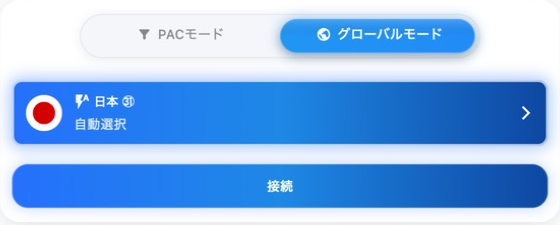
In this Japanese capture, 自動選択 is Auto Select and 接続 is
Connect. The screenshot demonstrates the shared control layout; it does not
replace the operating-system permission screenshot required for each platform.
Success check
Keep the app open for a few seconds and confirm it remains Connected. Then follow Confirm VilaVPN is working to verify network behavior rather than trusting the status label alone.
If it does not connect
- Record the exact error text and the selected server.
- Try Auto Select once.
- Confirm the device has a working internet connection without VilaVPN.
- If permission was denied, select Connect again and approve the operating system prompt. If no prompt returns, review the device's VPN settings.
- Do not repeatedly reinstall or switch many settings before preserving the first useful error and diagnostics.
- Continue to Cannot connect.
Was this page helpful?