How do I use VilaVPN for streaming and TV?
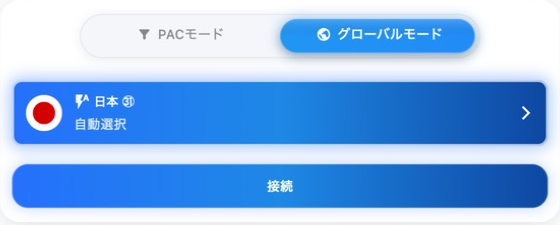
Use the official VilaNet app available for your TV, or connect the TV through a supported router running VilaNet. Streaming availability can vary by service, region and time, so test the service you intend to use.
- Choose the matching setup guide: Android TV, Apple TV, or a supported OpenWrt or Merlin router.
- Install VilaNet and sign in using that guide.
- Start with automatic server selection where the platform offers it. If the TV guide uses a specific server, choose the location needed for your task.
- Connect VilaNet.
- Confirm ordinary network traffic works on the TV.
- Open the streaming app and test the exact title or live channel you want to watch.
VilaVPN does not make every streaming service or title available in every region. A connected status alone does not verify playback.
Success check
VilaNet remains connected, the TV has ordinary internet access, and the chosen content begins playing normally.
If streaming does not work
- Nothing on the TV loads: disconnect once and confirm the TV's ordinary connection, then follow Connected but no internet.
- Other apps work but one service does not: preserve the service name, selected server, exact message and content tested. Try Auto Select or one other suitable server once.
- Playback is slow or unstable: compare the same content while disconnected and follow Slow or unstable connection.
- The issue continues: contact support with the TV model, platform, VilaNet version and redacted error.
Was this page helpful?