Why can’t I sign in to VilaNet?
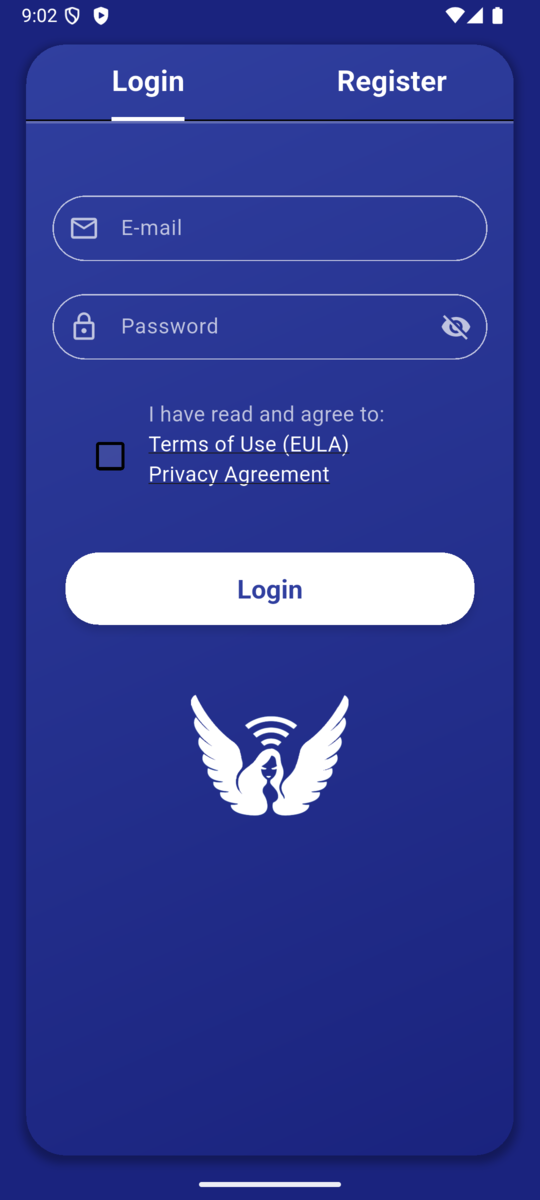
First preserve the exact error, then confirm the same account can sign in on the official VilaVPN website and has an active subscription. Do not reinstall until you have saved the useful evidence.
- Record the exact error shown by VilaNet.
- Confirm the complete address is entered under E-mail with no extra spaces.
- Re-enter the account password carefully under Password and select Login once.
- In a browser, sign in to the official VilaVPN website with the same account.
- Confirm the subscription is active.
- If the website works but VilaNet still fails, record the platform, VilaNet version, network type and time of the attempt.
Never send your password, raw subscription URL or token to support.
Success check
VilaNet opens its main screen and shows the connection controls. If it opens but reports an expired or inactive subscription, resolve the account status before trying to connect.
Match the result to the next step
- The website also rejects the sign-in: use the account recovery or account help shown on the official website.
- The website works but VilaNet shows a network error: confirm ordinary internet access and try one other network state if available, then preserve the new error.
- The subscription is inactive: renew or resolve the subscription before troubleshooting the VPN connection.
- VilaNet still rejects a working, active account: collect the details above and follow Contact support.
Was this page helpful?