How do routing and domain rules work?
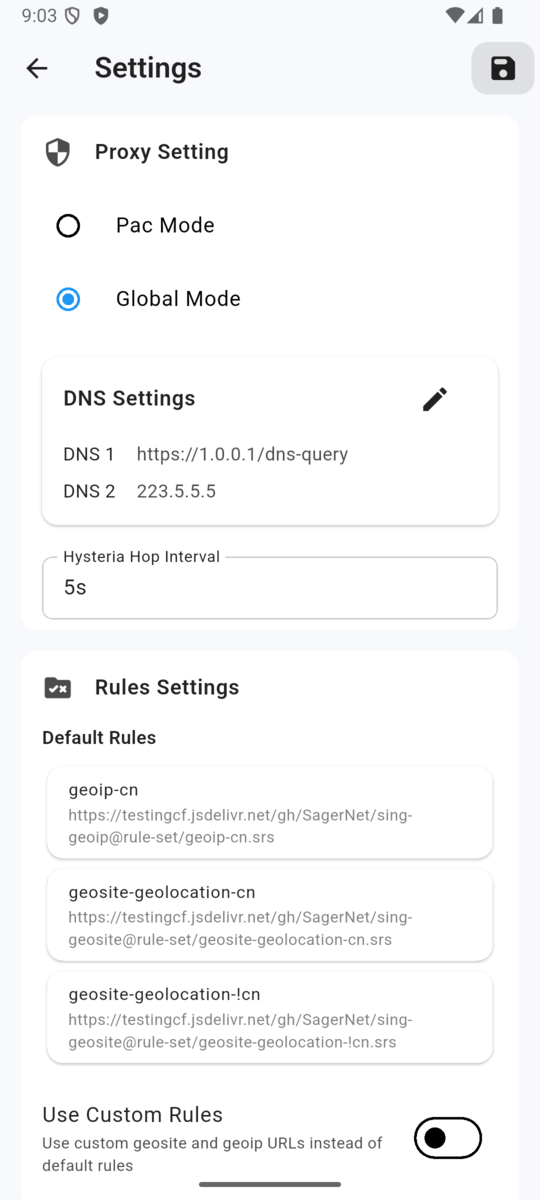
Routing and domain rules decide which traffic follows the VilaVPN connection and which traffic follows another route. Leave the current defaults unchanged unless you have a clear, testable reason to add a rule.
- First connect with the default routing settings and confirm ordinary traffic works.
- Write down the one website or task whose route needs to change.
- Record the current routing settings before editing anything.
- Add or change only one rule using the controls available in your current VilaNet app or router interface.
- Reconnect if the interface says the change requires it.
- Test the intended website or task and also load two familiar HTTPS websites.
- If either check fails, restore the setting you recorded in step 3.
Rule names, matching behavior and available routing modes differ by VilaNet platform. Do not copy an example from another platform unless its current guide explicitly says the formats are compatible.
Success check
The intended task follows the expected route, ordinary websites still load, and VilaNet remains connected. A saved rule by itself is not a success check.
If a rule causes a problem
- Only the named website fails: remove or revert the new rule and test it again with the default routing settings.
- All traffic fails: restore the previous setting, disconnect once, and follow Connected but no internet.
- The rule meaning or format is unclear: stop before saving it and contact support with the platform, app version and a sanitized description of the intended route.
Was this page helpful?